![Logo-RGB-color-solid.png]](https://help.kahlerautomation.com/hs-fs/hubfs/Logo-RGB-color-solid.png?height=40&name=Logo-RGB-color-solid.png)
Applies To
- FLEXCOMMAND Dry Towers
- Plant Supervisor PSX
Overview
On a dry tower with two weigh hoppers, each bulk product is normally dispensed by the one hopper it is specifically configured to. Reassign Bulk Products lets the operator change that partway through an order, enabling or disabling each product in paired hoppers for the remainder of the load, or until the operator reassigns them again.
A typical use is freeing one hopper in the pair for another operation running in parallel, and moving the remaining products onto the other hopper. Common examples of this need would be rail loadout or repack operations, though it is useable for any long-running operation with multiple batches or compartments.
Note: Reassign Bulk Products requires the dry tower weigh hoppers to be configured as a "dry tower weigh hopper (pair)".
On the Loadout screen, each product bin label shows the controller name of the weigh hopper that bin feeds, so the operator can see which products each hopper can dispense before changing anything.
When the Option Becomes Available
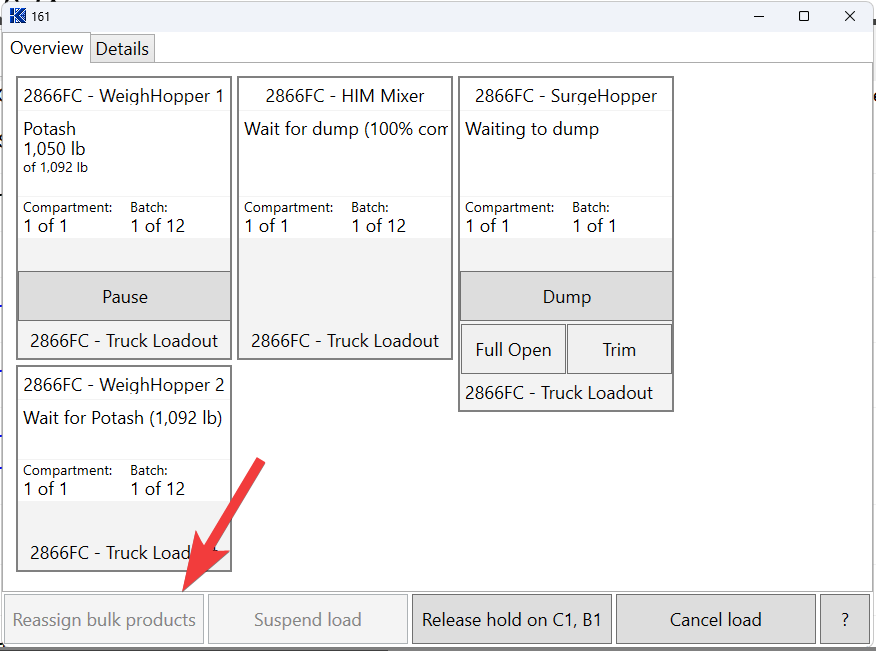
The option is available once the order is held (see Plant Supervisor PSX - Hold on Compartment and Batch) or its in-progress controllers are paused.
The operator reads controller status at the top left of each weigh hopper graphic on the Loadout screen.
Opening the Weigh-Hopper Pair Bulk Products Window[TR4]
From the “Load View Details” window, clicking the "Reassign bulk products" button opens the "Weigh-hopper pair bulk products" window.
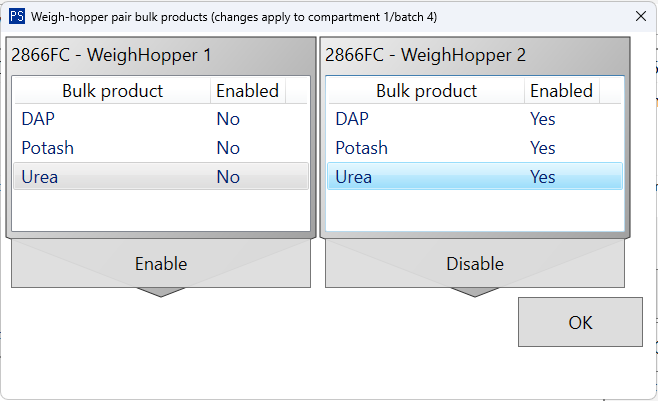
The window title shows the compartment and batch the change takes effect from, for example "Weigh-hopper pair bulk products (changes apply to compartment 1/batch 4)". Batches before that point are not affected.
Below the title are two side-by-side panes, one for each hopper of the pair, titled with the panel name and the hopper name, for example "2866FC - WeighHopper 1" and "2866FC - WeighHopper 2".
Enabling and Disabling Products
Each pane lists the bulk products available in that hopper, with "Yes" or "No" in the "Enabled" column. In the example above, all three products are disabled in "WeighHopper 1" and enabled in "WeighHopper 2", so every product runs from hopper 2 for the rest of the order.
To change a product, the operator clicks its row to select it, then clicks the button under that pane to enable or disable that bulk product on that weigh hopper.
Clicking "OK" applies the changes and closes the window.
Further Reading
- Plant Supervisor PSX - Hold on Compartment and Batch
- FLEXCOMMAND - Suspend Load
- FLEXCOMMAND - Sub-system Product Assignment
Still Need Help?
Submit an online web ticket or call us at Kahler Automation 507-235-6648 Option 2.