![Logo-RGB-color-solid.png]](https://help.kahlerautomation.com/hs-fs/hubfs/Logo-RGB-color-solid.png?height=40&name=Logo-RGB-color-solid.png)
Applies To
- Plant Supervisor PSX
Overview
Hold on Compartment and Batch is an optional Plant Supervisor PSX feature. It lets the operator stop a load before the next compartment or batch starts, while the batches already underway run to completion. The order is not canceled.
A load is dispensed as a series of batches, grouped by the compartments of the transport being filled. The hold takes effect between one of these groupings as labeled on the button.
Note: Plant Supervisor PSX offers some operator actions only while a load is held, because they are not safe to take while batches are starting. Those actions are unavailable unless Hold on Compartment and Batch is enabled.
Enabling the Hold
Hold on Compartment and Batch is not active by default. The operator enables it in Plant Supervisor PSX under "Settings" > "Options", among the load view details settings. No particular permission is needed to turn it on.
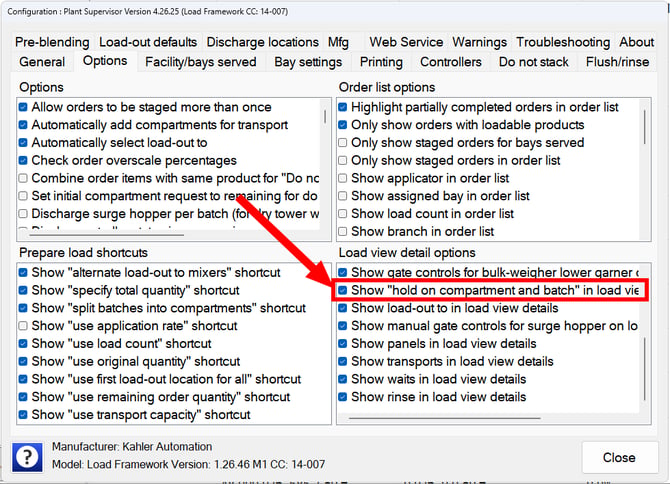
Once enabled, the hold button appears on the load view details window for any order loaded on that copy.
Note: The setting belongs to the copy of Plant Supervisor PSX it is enabled on, rather than to a site, a bay, or a panel.
Holding a Load
The load view details window for an in-progress order has a hold button. The button names the compartment (C) and batch (B) the hold will take effect on; for example "Hold on C1, B1".
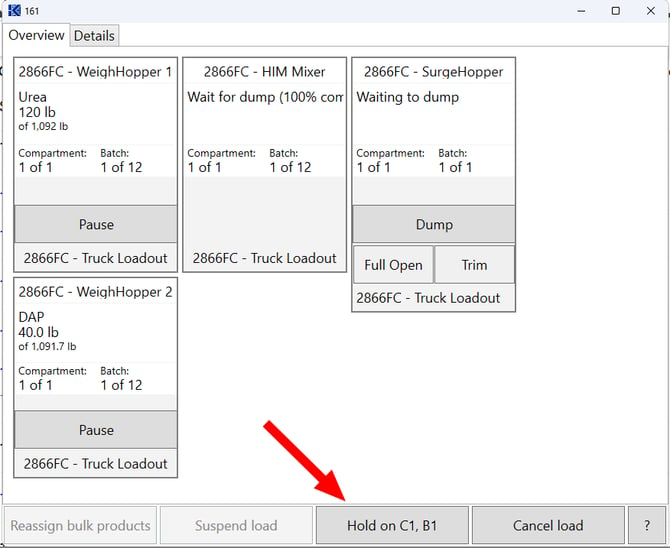
Clicking the button stops any further compartment or batch from starting. Batches already under way run to completion. A held order reports its status as "Holding on next compartment and batch."
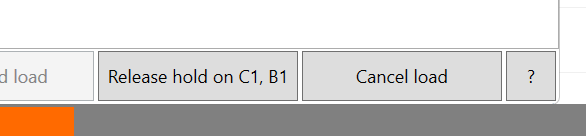
When a hold is in place the button label changes to "Release hold on C1, B1". Clicking it again lifts the hold, and the order continues with the next compartment and batch.
Further Reading
- FLEXCOMMAND - Reassign Bulk Products
- FLEXCOMMAND - Suspend Load
- Plant Supervisor PSX - Options
- Plant Supervisor PSX - In Progress
- Plant Supervisor PSX - Run an order
- Fill Limits
Still Need Help?
Submit an online web ticket or call us at Kahler Automation 507-235-6648 Option 2.