![Logo-RGB-color-solid.png]](https://help.kahlerautomation.com/hs-fs/hubfs/Logo-RGB-color-solid.png?height=40&name=Logo-RGB-color-solid.png)
Applies To
- Constellation
Overview
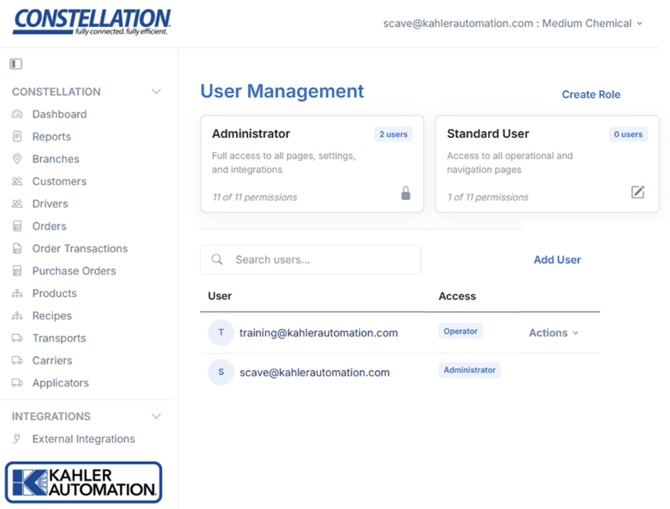
Constellation controls what each user can see and do through roles. A role is a named collection of permissions shaped around a job function, such as Administrator, Dispatcher, Operator, or Read Only. A user with the Administrator role, called an administrator, defines a role once and then assigns it to any number of users, so access is managed consistently across the team instead of being configured person-by-person.
Roles belong to a single business and are never shared between businesses. The same person can be an Administrator in one business and a read-only user in another. For how administrators add users and assign these roles, see Constellation - User Accounts.
Note: Roles and permissions apply only within Constellation. They do not control access to TMX, PSX, LOADPASS, or any other Kahler application.
Key Terms
- User: An individual who can sign in to Constellation.
- User Profile: A user's account information and preferences, such as name, email, password, and time zone. A user profile does not determine access.
- Permission: Access to a single feature area. A permission grants either the ability to make changes or view-only access. It is the smallest unit of access.
- Role: A named set of permissions that can be assigned to users.
- Role Assignment: The relationship that grants a role to a user; for example, Trisha assigned to Administrator.
-
Access: The effective permissions a user has because of their assigned role.
How Access Works
A user's access follows a single path: the user is given a role assignment, the assignment points to a role, and the role's permissions become the user's access. A user cannot be part of a business without a role, and a user's access is exactly the permissions of their assigned role. Because there are no per-user overrides, editing a role changes the access of every user who holds it, and the change applies immediately.
Each action a user takes checks the permission it requires. A user whose role lacks that permission is refused. Administrators pass every permission check automatically.
Note: Permissions cannot be granted to an individual user. To change what a user can do, either assign them a different role or change the permissions of their current role.
Permission Levels
A role is built from individual permissions that cover the operational and administrative areas of the application. Each permission has two levels:
- At the base level, the user can open the area and see everything in it but cannot change anything (view only).
-
At the elevated level, the user can also make changes.
A few areas work differently. The Dashboard and Reports, Settings, and Integrations areas are hidden entirely when a role does not grant it, rather than shown as view only. Closely related permissions are grouped so they can be granted together or one at a time. For example, a role can allow completing orders without the ability to create them.
Feature Areas
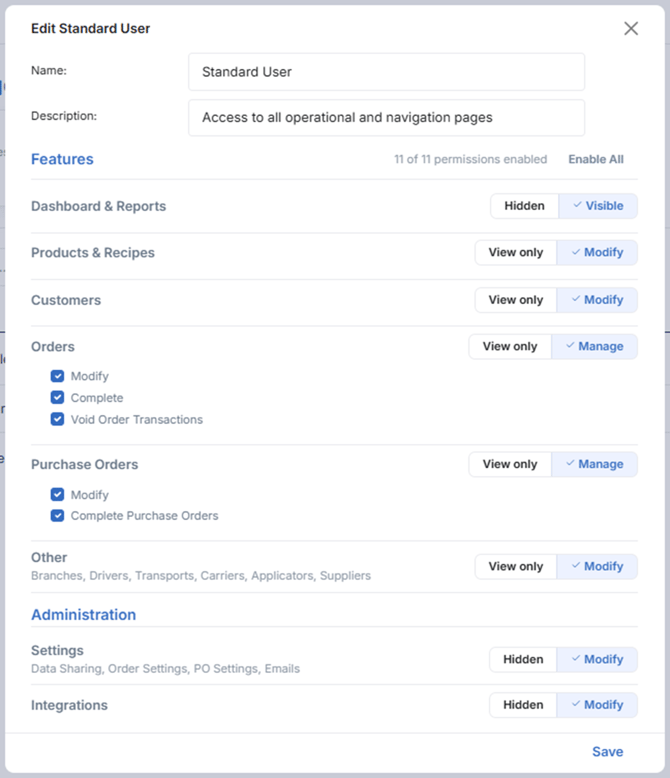
A role grants access to each area independently:
|
Area |
What it covers |
|
Dashboard & Reports |
Viewing dashboards and reports (hidden when not granted). |
|
Products & Recipes |
Creating and changing products and recipes. |
|
Customers |
Creating and changing customers. |
|
Orders |
View only, or manage. Manage is granted as separate sub-permissions: modify, complete, and void order transactions. |
|
Purchase Orders |
View only, or manage. Manage is granted as separate sub-permissions: modify and complete. |
|
Other |
Branches, drivers, transports, carriers, applicators, and suppliers. |
|
Settings |
Data sharing, order settings, purchase order settings, and emails (hidden when not granted). |
|
Integrations |
Connecting and managing external integrations (hidden when not granted). |
Orders and Purchase Orders grant their sub-permissions separately, so a role can allow one action within an area without allowing the others.
The full set of permissions and their groupings is visible when creating or editing a role on the Users page.
Built-In Roles
Every business starts with two built-in roles the moment it is created. These serve as the default profiles available when assigning a user:
- Administrator: full access to all pages, settings, and integrations, including adding, modifying, and removing users and adding and modifying roles, and managing sites. The Administrator role is locked, so it cannot be renamed, have its permissions changed, or be edited in any way. Full administrator access comes only from this built-in role.
-
Standard User: access to all operational and navigation areas, but not Settings or Integrations. Standard User behaves like any role the business creates itself, so it can be renamed and its permissions adjusted. It is the default choice when adding a user.
Administrators are the only users who can manage the business's users roles, and sites. A role that grants every operational permission still cannot add users, change their roles, create and edit roles, or manage sites.
Note: An administrator cannot change their own role. Another administrator must make the change.
User-Created Roles
Administrators can create as many additional roles as the business needs, such as a Dispatcher who manages orders but nothing else, or a Read Only role that leaves every permission at its base level. Roles are created and edited on the Users page, where roles are summarized at the top and the user list appears below. Only administrators can manage them.
The following rules apply to roles:
- Every role must have a name and a description.
- A role name must be unique within the business, regardless of case (e.g. “Dispatcher” = “dispatcher” = “DISPATCHER”).
- A user-created role can grant any combination of permissions except those exclusive to the Administrator role, such as managing users, sites, and roles.
- A role can be edited at any time, and the change applies immediately to everyone holding it.
-
Roles cannot be deleted. A role that is no longer needed can sit unassigned with no effect, or be renamed and repurposed.
Further Reading
Still Need Help?
Submit an online web ticket or call us at Kahler Automation 507-235-6648 Option 2.