![Logo-RGB-color-solid.png]](https://help.kahlerautomation.com/hs-fs/hubfs/Logo-RGB-color-solid.png?height=40&name=Logo-RGB-color-solid.png)
Applies To
- Constellation
Overview
Constellation users are personnel who work at the business level rather than on a single site. Each user signs in with their own profile, which gives them access and holds account information such as their email address.
Note: An account can belong to more than one business. The user switches between them from the username menu in the top right.
Each user is assigned one role, and that role determines what the user can see and do. This article covers adding and removing users and assigning their role. For what each role grants and how to define roles, see Constellation - User Roles.
Note: Constellation users and roles apply only within Constellation. Adding, changing, or removing a user does not affect their access to TMX, PSX, LOADPASS, or any other Kahler application.
Who Can Manage Users
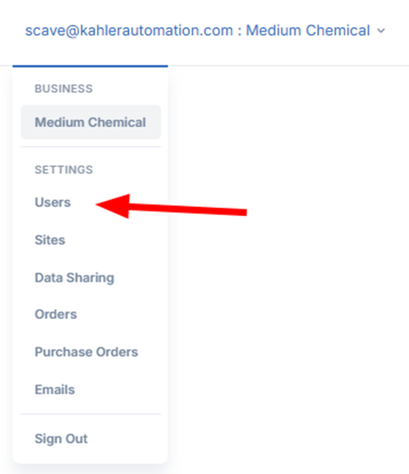
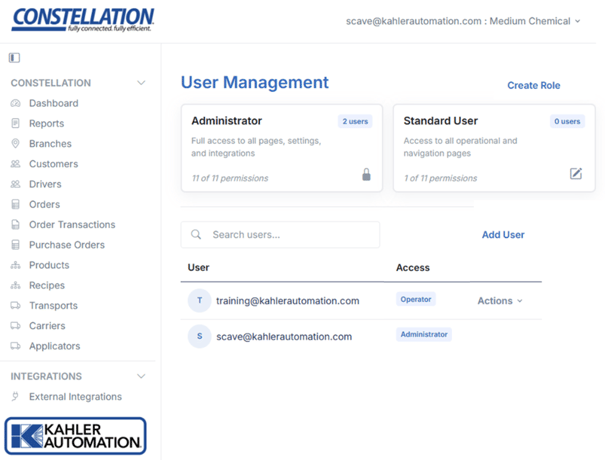
Users with the Administrator role manage users from the Users page, available in the Settings section found by clicking the username in the top right corner of Constellation. This section is hidden from users without the Administrator role.
Adding a User
A user with the Administrator role adds a user from the Users page by clicking "Add User", then entering the email address the new user will use to log into Constellation. A role is selected for the new user at this time, with Standard User preselected.
Those who already have a Constellation account under an email address gain access right away and are notified by email, with the business added to their existing account. If they do not yet have an account, they are invited by email and shown as pending until they sign in for the first time. A pending invitation already carries a role. That role can be changed, or the invitation removed, before the person signs in.
Tip: Users receive an email when they have been added to a business. New user emails come from DONOTREPLY@kahlerautomation.com.
Creating an Account
Once added, a user who does not already have an account goes to https://constellation.kahlerautomation.com and creates an account by clicking the "Sign up now" link on the login page. The user enters the email address that was added, then follows the directions to create and verify the account.
Note: If the user's company uses Single Sign-On, they select Single Sign-On under "Sign in with your company login" instead of creating an account. Always sign in the same way the account was first created, as the two methods are treated as separate accounts.
Changing a User's Role
A user with the Administrator role changes what another user can do by assigning them a different role, edited the same way from the Users page when editing the user's account. Each user is assigned exactly one role, chosen from the roles that belong to that business, and the change takes effect immediately.
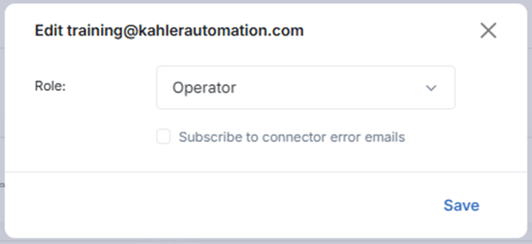
Note: Adding a user to Connector Error Emails is optional and can be changed at any time on the Constellation - Emails page.
Removing a User
Removing a user revokes their access to the business immediately, after a confirmation prompt. Removing a user affects only their access to that business. Their account and their access to any other business are unaffected.
Safeguards
Users cannot edit or remove themselves. Someone else with the Administrator role must make the change.
Further Reading
- Constellation - User Roles
- Constellation - Emails
Still Need Help?
Submit an online web ticket or call us at Kahler Automation 507-235-6648 Option 2.