![Logo-RGB-color-solid.png]](https://help.kahlerautomation.com/hs-fs/hubfs/Logo-RGB-color-solid.png?height=40&name=Logo-RGB-color-solid.png)
Applies to:
- Constellation
Data sharing links two sites together to give Constellation users a better view into how a site is functioning. Data sharing is limited to inventory and transaction data at this time.
Companies operating a site in partnership may use data sharing to update each other on site performance.
Note: To create, accept, or revoke a site connection a user must be an Administrator in Constellation.
Access the Data Sharing Page
After logging into Constellation:
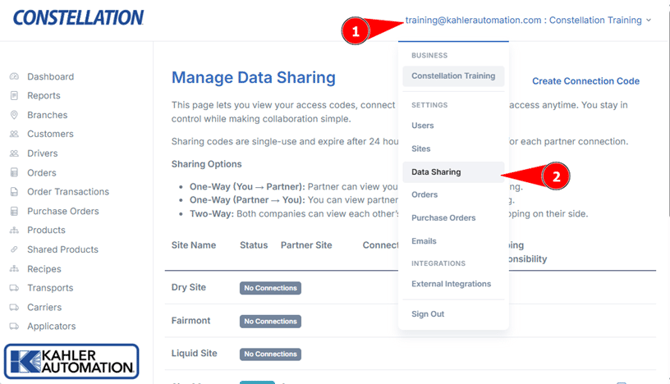
- Click the username in the top right of the screen to access the dropdown menu.
- Select the “Data Sharing” option.
Create a Connection
To create a new connection code:
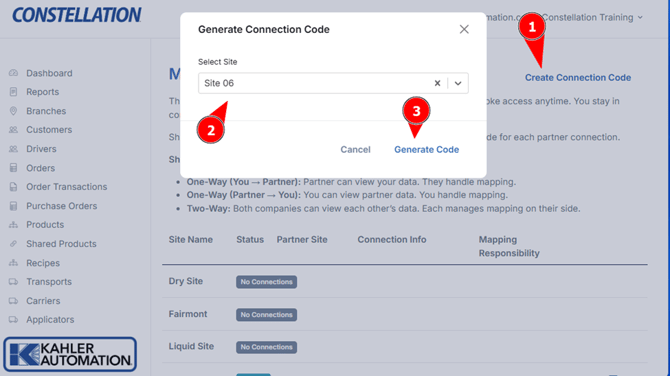
- Click the “Create Connection Code” link at the top right.
- Select a site to share.
- Click “Generate Code”.
- Copy the code
Caution: Connection codes are only shown once. Copy it somewhere safe before clicking “Done”.
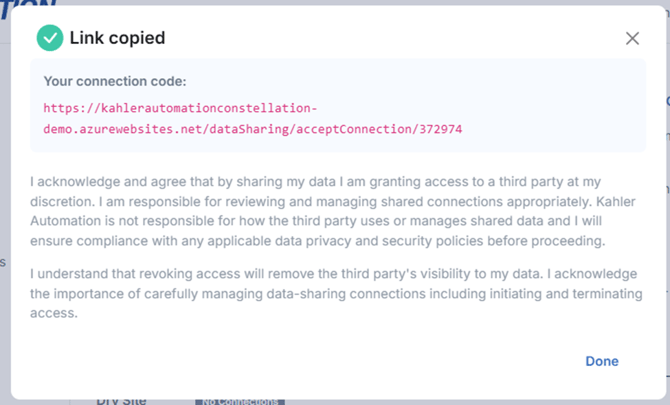
5. Send the code to the Constellation Administrator at the company being shared with.
Note: Codes may only be used once and expire after 24 hours. New codes can be generated if a code expires.
Note: Connections codes only share data about one site. To share multiple sites, create and share a code for each site.
Note: Connection codes create only an outbound connection. To receive information, have the Constellation Administrator at the other company send you a code. To create a two-way connection a Constellation Administrator from both companies must each create and share a code.
Accept a Connection
To accept a connection code and start receiving from another company:
- Click on the connection code or paste it into the browsers URL bar.
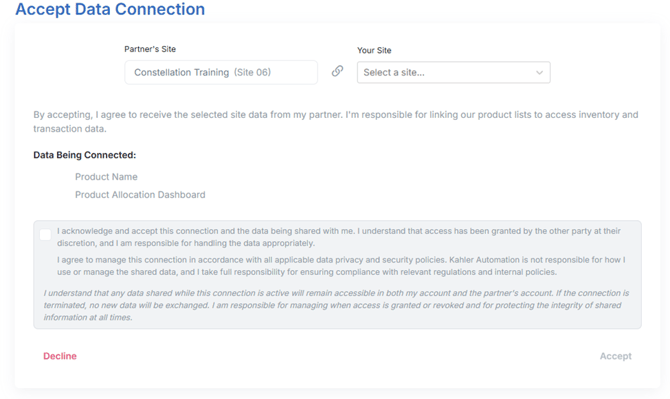
The shared information is shown on the “Accept Data Connection” screen when a Constellation Administrator accepts a data sharing request.
2. Select a site to map the data shared to.
3. Read and accept the data share agreement by checking the box.
4. Click "Accept".
The data share is now active, and products should now be mapped; see Constellation - Shared Products.
Revoke a Connection
If data should now longer be shared to or received from a partner company:
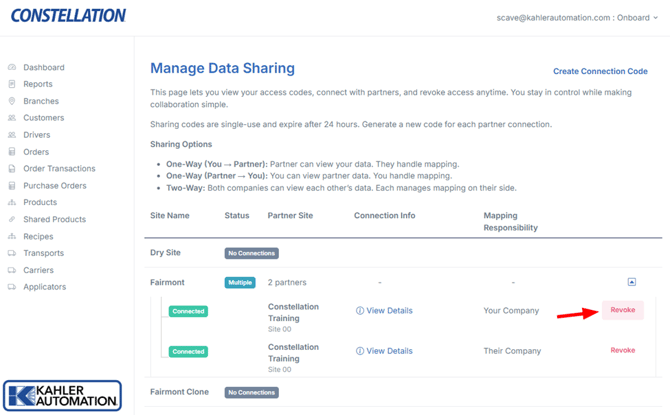
- Click the Revoke button next to the data share information.
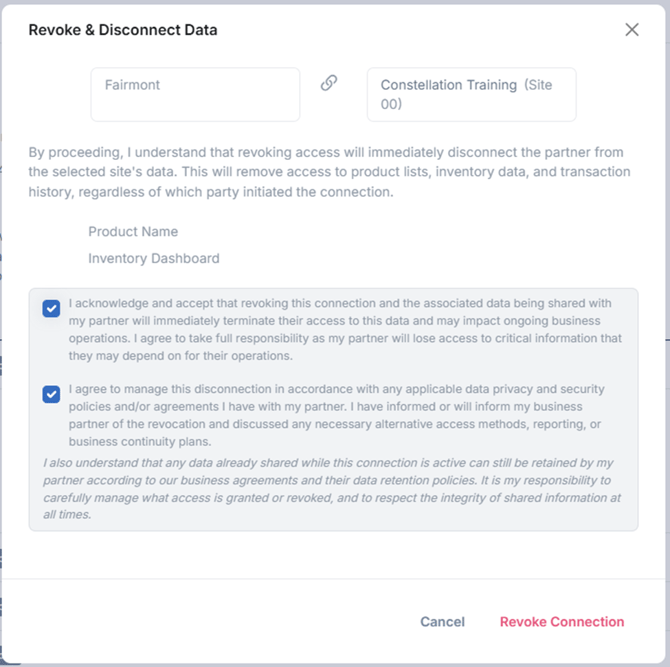
- Read and acknowledge the statements on the “Revoke & Disconnect Data” screen by checking both check boxes.
- Click “Revoke Connection”
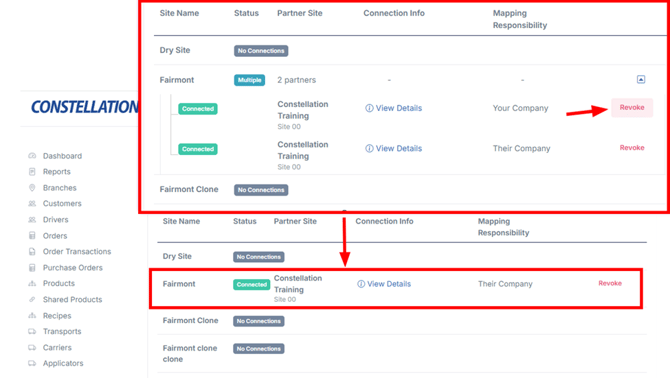
The data share connection will be removed.
Repeat as needed.
Next Steps
After connecting to a partner company, mapping products is still required. See Constellation - Shared Products for next steps.
Still Need Help?
Submit an online web ticket or call us at Kahler Automation 507-235-6648 Option 2.