![Logo-RGB-color-solid.png]](https://help.kahlerautomation.com/hs-fs/hubfs/Logo-RGB-color-solid.png?height=40&name=Logo-RGB-color-solid.png)
Units define the units of measure for volume and mass used in reports, tickets, and orders. The way units are displayed, and their precision, can be adjusted to site needs; additionally, sites may configure new custom units to suit their operations, such as defining a “jug” unit.
Applies to
- Terminal Management TMX
Unit customization
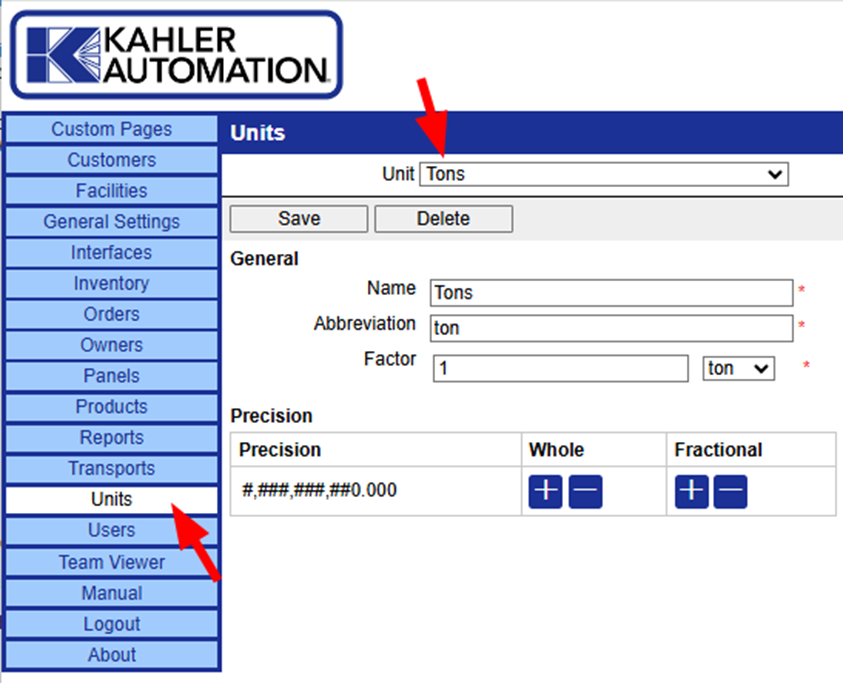
Units can be customized to use specific names or abbreviations and display with leading zeros or decimal precision. Shown above, the “Tons” unit has been adjusted to show 3 decimal digits by clicking the “+” under “Fractional”.
Precision of units is limited by hardware, i.e. a delivered amount from a scale measuring in full pounds cannot show single ounce precision.
Caution: Default units should not have their “Factor” value modified. Doing so can have severe unintended consequences for system operation.
Creation of New Custom Units
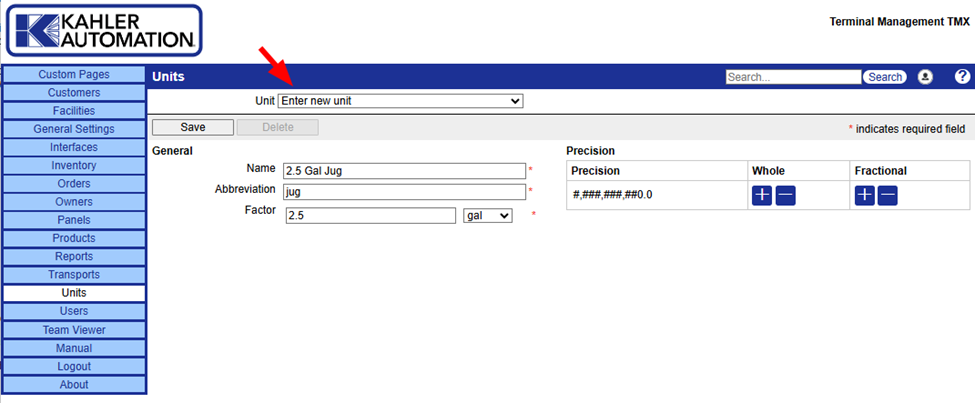
Custom units can be added to Terminal management TMX by selecting “Enter new unit” from the dropdown at the top of the Units page and filling in the Name, Abbreviation, and Factor, and setting the Precision.
Name: The full name of the unit typically used when selecting the unit of measure. The name is required and may be up to 50 characters long.
Abbreviation: The abbreviation used when displaying quantities with this unit of measure. The abbreviation is required and may be up to 10 characters long. Example: "lb" is the abbreviation for the pounds unit of measure.
Factor How this unit of measure relates to a base unit of measure (selected in the drop-down list to the right). Factor is required and must be a numeric value greater than zero.
Caution: Factors of “1” should be reserved for default units exclusively. Adding units with the factor value set to “1” can have severe unintended consequences for system operation.
Using 16 ounces instead of 1 pound is a safe alternative definition for a custom unit should it be required.
Precision: Used to specify the number of digits to the left and to the right of the decimal place that should be displayed for quantities dispensed by this panel. Use the "+" and "-" buttons to add and remove decimal places to whole (left) and fractional (right) part of the number for each unit of measure.
Still Need Help?
Submit an online web ticket or call us at Kahler Automation 507-235-6648 Option 2.