![Logo-RGB-color-solid.png]](https://help.kahlerautomation.com/hs-fs/hubfs/Logo-RGB-color-solid.png?height=40&name=Logo-RGB-color-solid.png)
Common Causes
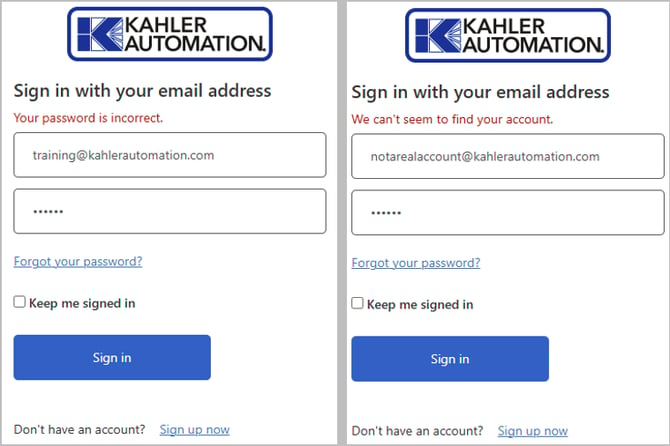
- Forgotten or incorrect password
- No LOADPASS account exists for the email address
- Verification code expired, mistyped, or not received
- Account email does not match the email added to the site's LOADPASS Administration users
Applies To
- LOADPASS
- LOADPASS Administration
Solution In-Depth
Most sign in problems come down to the account, the password, or the verification code. Find the cause that matches what the sign in page shows and follow the steps for it.
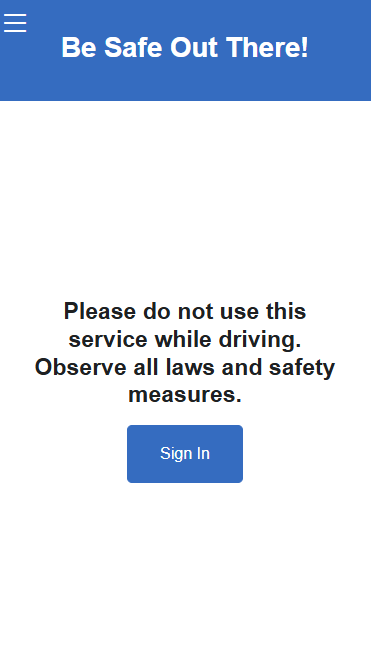
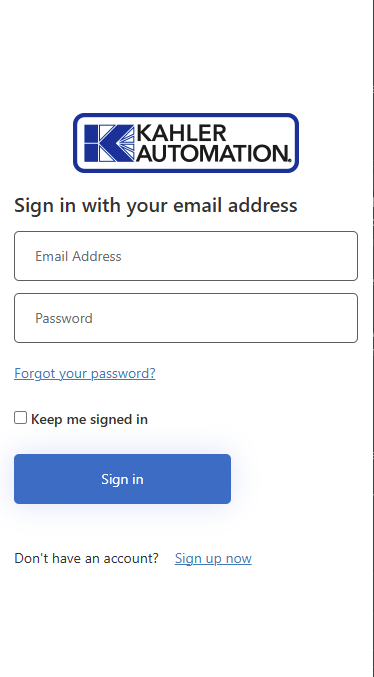
Forgotten or incorrect password
- On the sign in page, select "Forgot your password?".
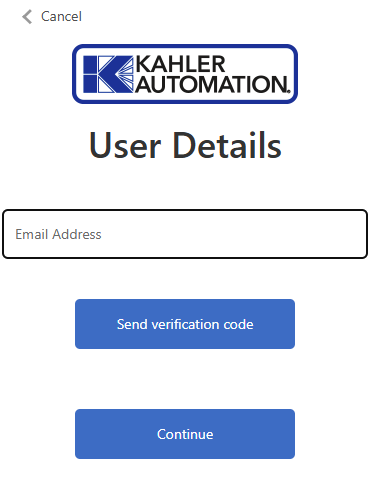
- On the "User Details" page, enter the email address used for the LOADPASS account and select "Send verification code".
- Open the email from LOADPASS and copy the verification code into the "Verification Code" field.
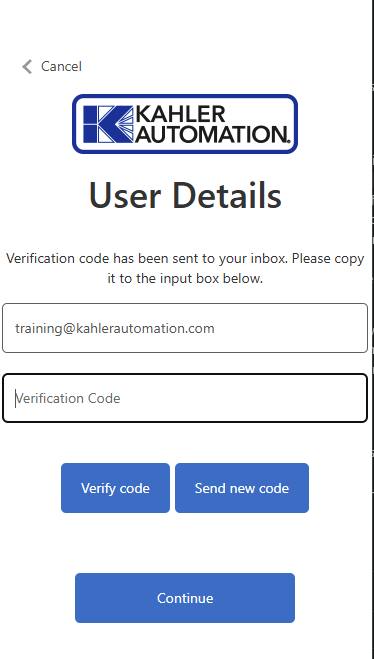
- Select "Verify code". The page confirms "E-mail address verified. You can now continue."
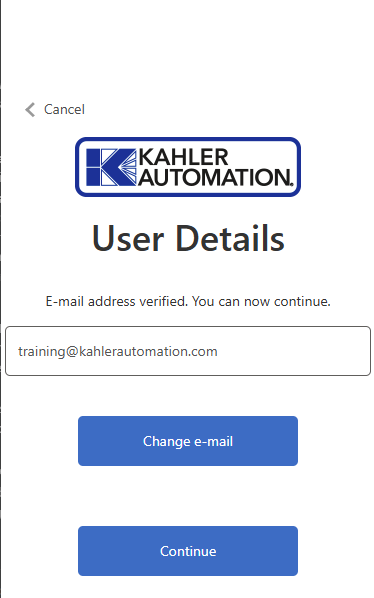
- Select "Continue", then enter a new password and click "Continue”.
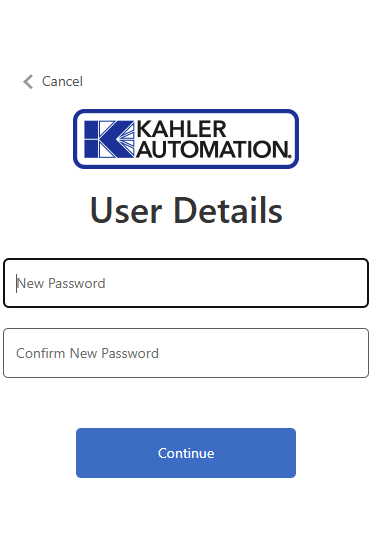
- Log in with the new password.
- On the sign in page, select "Sign up now".
- Enter the email address and select "Send verification code".
- Enter the code from the email, select "Verify code", then select "Continue" and complete the remaining account details.
No LOADPASS account for the email address
Each user creates their own LOADPASS account from the sign in page. If the email address has never been used to create an account, the sign in page will not accept it.
Verification code problems
The verification code is sent to the email address entered on the page. Messages the user may see:
|
Message |
What to do |
|
"That code is incorrect. Please try again." |
Re-enter the code exactly as it appears in the email. |
|
"That code is expired. Please request a new code." |
Select "Send new code" and use the newest email. |
|
"You've made too many incorrect attempts. Please try again later." |
Wait, then start again from the sign in page. |
|
"There have been too many requests to verify this email address. Please wait a while, then try again." |
Wait before selecting "Send verification code" again. |
|
"We are having trouble verifying your email address. Please enter a valid email address and try again." |
Check the email address for typos. |
If the email does not arrive within a few minutes, the user checks the junk or spam folder, then confirms the email address is spelled correctly. Emails will be sent from “msonlineservicesteam@microsoftonline.com”. "Change e-mail" returns to the email field so the address can be corrected.
Signed in, but LOADPASS Administration is not available
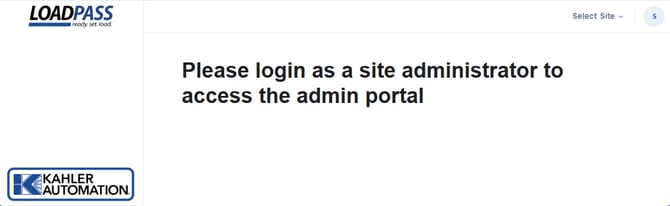
LOADPASS Administration is reached at https://loadpass.kahlerautomation.com/admin. Access is granted per site by an existing LOADPASS Admin, who adds the user's email address on the "Users" page (see LOADPASS Administration - Users). The account the user creates must use the same email address the LOADPASS Admin entered. An account with a different email address signs in successfully, but LOADPASS Administration shows "Please login as a site administrator to access the admin portal" instead of the site's administration pages.
Note: A user with access to more than one site signs in normally, but a site the user has not been added to does not appear in the list of sites.
The user will need to contact a LOADPASS Admin for the site to confirm the email address on file, or to have it added.
Further Reading
Still Need Help?
Submit an online web ticket or call us at Kahler Automation 507-235-6648 Option 2.