![Logo-RGB-color-solid.png]](https://help.kahlerautomation.com/hs-fs/hubfs/Logo-RGB-color-solid.png?height=40&name=Logo-RGB-color-solid.png)
Applies to
- Terminal Management TMX
Product groups allow sites to display specific units of measure on their tickets (also known as BOL or Transactions). By assigning a product to a product group, additional units per product can be shown.
Sites with dry and liquid facilities on the same database may have differing requirements, such as pounds and tons on the dry side and pounds and gallons for liquid. Certain products may also need to be shown in pints or ounces.
Creating Product Groups
In Terminal Management TMX click the Product section, then Product Groups.
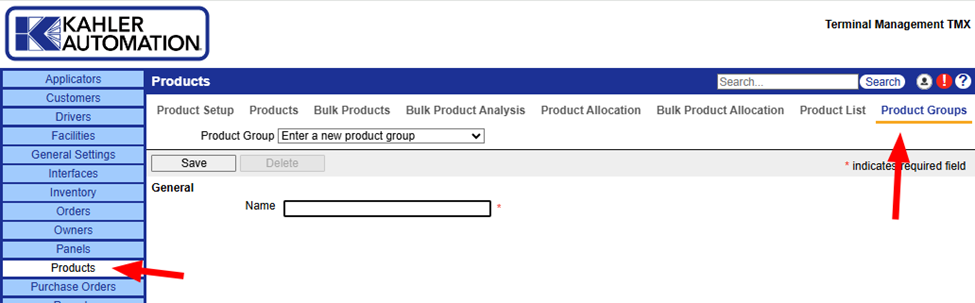
Add a new product group by choosing “Enter a new product group” from the drop-down and enter a name. Click "Save” to create it.
View existing product groups from the drop-down menu at the top of the page.
Add a product to the Product Group
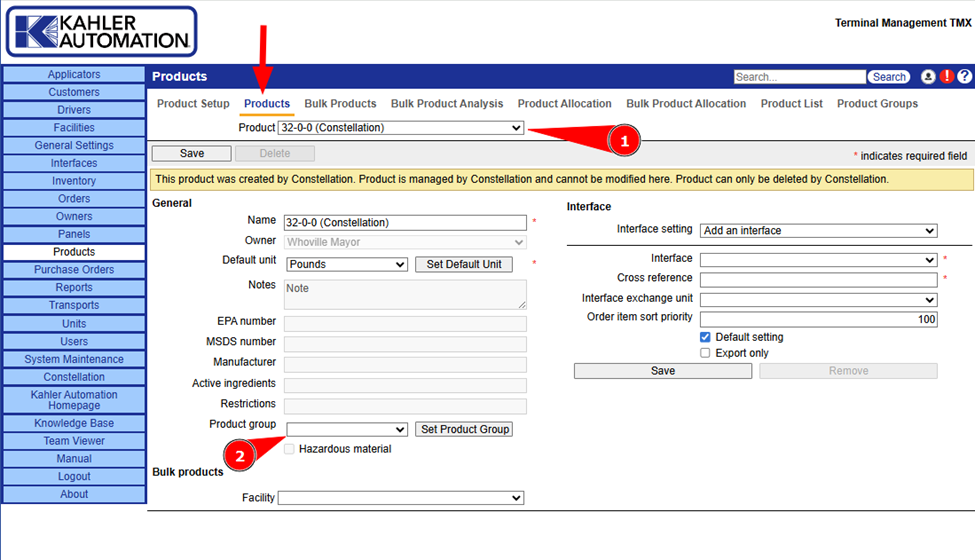
Product groups are configured on the product. The Product Setup Tool can be used to configure the product group, or it can be done from the Products page.
- Select a product.
- Choose a product group it should belong to.
Shown here is a Constellation-controlled product. Save the product group by clicking the “Set Product Group” button. Non-Constellation products are saved by clicking the "Save” button in the top left.
Repeat this step for all products that need a Product Group.
Configuring units for a Product Group
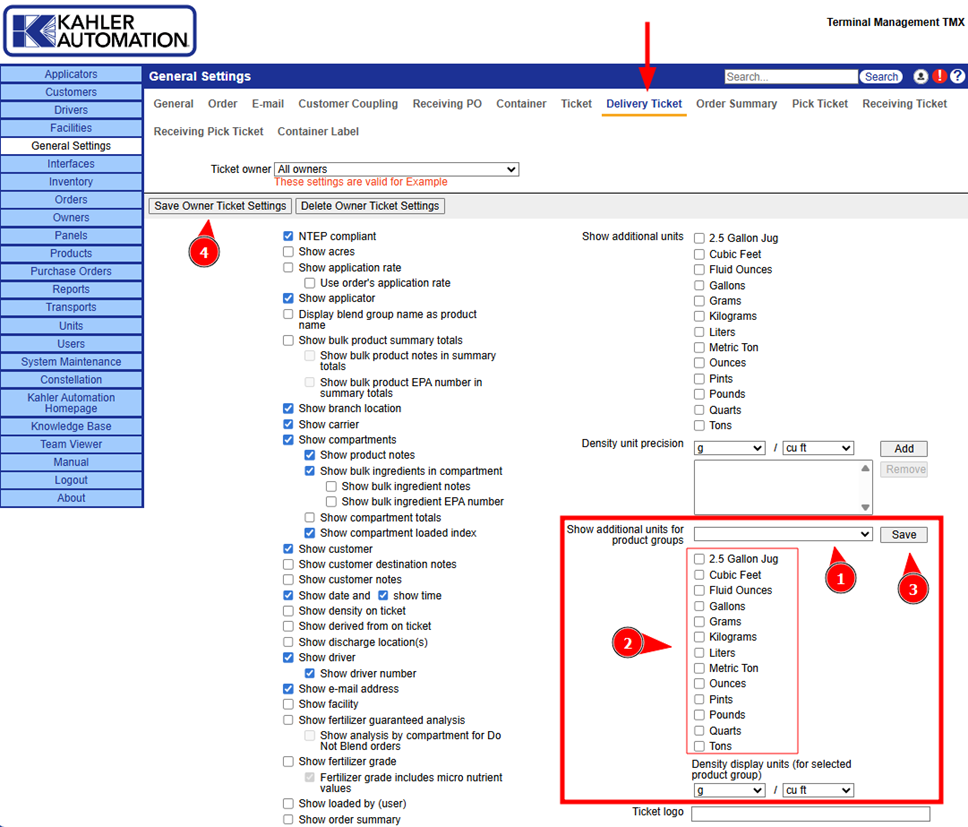
Product groups are configured under general settings on the delivery ticket page. See Ticket Customization for more information about this page.
On the right side of the Delivery Ticket page is a product group section. Each product group can be configured here for the specific units they will add per configured product.
- Choose a product group from the drop-down.
- Select the units that should be added. The unit a product is ordered in will always be shown.
- Click “Save”.
- When all product groups are configured, click “Save Owner Ticket Settings” at the top left.
Still Need Help?
Submit an online web ticket or call us at Kahler Automation 507-235-6648 Option 2.