![Logo-RGB-color-solid.png]](https://help.kahlerautomation.com/hs-fs/hubfs/Logo-RGB-color-solid.png?height=40&name=Logo-RGB-color-solid.png)
Office View
An operational tool used by admins to manage staged orders.
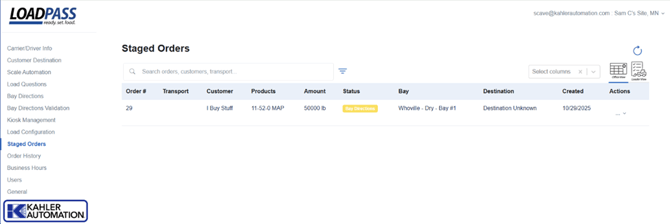
Office View may be customized by setting visible columns or adding a filter.
Staged orders can be canceled by selecting the "Remove" option in the Actions menu.
Removing an order will notify drivers and allow the order to be staged again. Drivers may directly cancel their order from the menu at the top left of their LOADPASS screen.
A "Complete without Signature" action is available for staged orders where a driver has left site without signing. This action will complete the order but the created ticket will be marked as "NO SIGNATURE" in place of the drivers signature.
Loader View
Designed for use during manual loading.
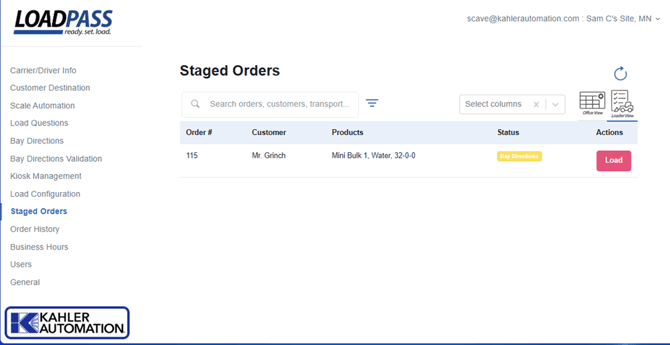
Sites loading trucks manually (via loader or other means) can use the Loader View to access information about the staged order. Once loading is complete, click the “Load” button to clear the staged order from the list.
Staged Order Statuses
Statuses give the facility operator an understanding of the current state of an order on their site. Not all statuses will apply to a given site.
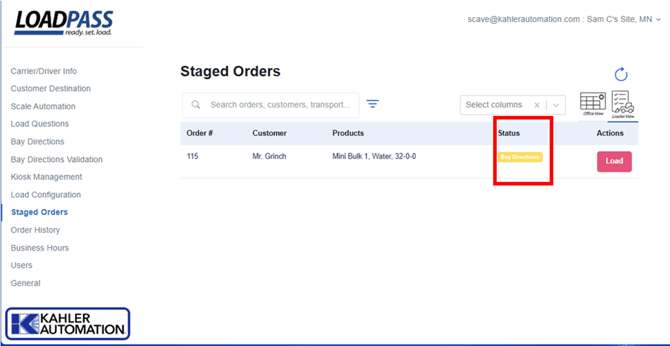
Bay Directions - Driver is on-site and heading to bay or in line.
Check In - Driver has staged their order with LOADPASS and has yet to arrive on-site.
Dispensing - A loadout application is currently loading the transport.
Gross Weight - Driver is on truck scale, capturing their final weight.
Loaded - Transport has been loaded and driver is heading to truck scale to capture final weight.
Rejected Gross - Driver has rejected their final weight and may return to loadout to adjust their load.
Signature - Driver has been loaded and LOADPASS is waiting on the driver to sign to finalize the ticket.
Tare Weight - Driver is on truck scale, capturing their initial weight.
Ticket Instructions - Driver has signed and the ticket is being printed or emailed by LOADPASS.
Further Reading
Still Need Help?
Submit an online web ticket or call us at Kahler Automation 507-235-6648 Option 2.