![Logo-RGB-color-solid.png]](https://help.kahlerautomation.com/hs-fs/hubfs/Logo-RGB-color-solid.png?height=40&name=Logo-RGB-color-solid.png)
Applies To
- Terminal Management TMX
When to Adjust Inventory
Use a manual inventory adjustment when:
- The physical quantity in a tank or bin does not match what TMX shows after a physical count.
- Product has been lost to spillage, measurement error, or sampling.
- Inventory is being set for the first time during initial system setup.
- The site does not use TMX’s Purchase Orders workflow. At these sites, manual adjustment is how received product gets added to the system.
If the site does use Purchase Orders, record incoming product through a purchase order instead. This keeps a receiving history tied to the delivery.
Adjusting the Inventory Quantity
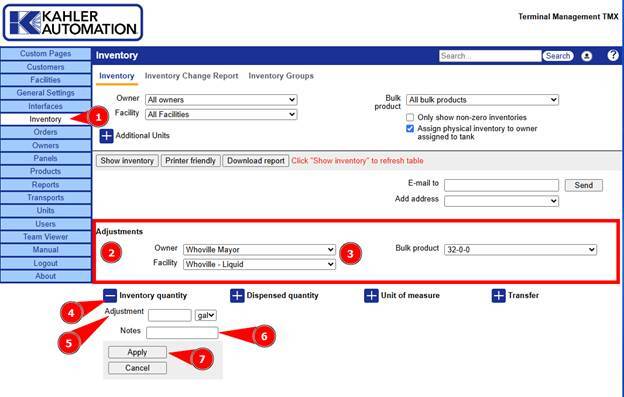
- From the main menu, select “Inventory.”
- Scroll down to the “Adjustments” section.
- Select the Owner, Facility, and Bulk product to adjust.
- Click “+” next to “Inventory quantity” to expand the form.
- Enter the adjustment amount in the “Adjustment” field and select the unit from the dropdown.
- Enter a note describing the reason in the “Notes” field. Adding a note is recommended so the adjustment history is meaningful when reviewed later.
- Click “Apply.”
TMX applies the adjustment immediately and records it in the Inventory Change Log.
Note: The “Adjustment” value is a change to the current quantity, not a new absolute total. Enter a positive number to add inventory, or a negative number to reduce it.
Other Adjustment Types
Unit of measure changes the unit used to display and track the product’s inventory. Select a unit from the dropdown and click “Apply.” Check “Convert current quantities” to recalculate existing values into the new unit. Left unchecked, the unit label changes but the numeric values stay the same.
Dispensed quantity is a running total of product dispensed through load operations, visible in the Inventory report. Click “Reset dispensed quantity” to set it back to zero for the selected owner, facility, and product.
Transfer moves a quantity of inventory to another owner at a facility. Enter the quantity and unit, select the destination owner, confirm the facility, add an optional note, and click “Apply.”
Viewing the Inventory Change Report
TMX records every adjustment with the date, time, and any note entered at the time of the change.
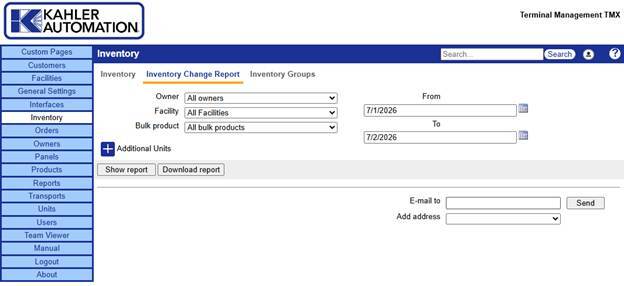
To view the history:
- From the main menu, select “Inventory.”
- Click the “Inventory Change Report” tab.
- Filter by Owner, Facility, and Bulk product as needed.
- Set a date range using the “From” and “To” fields.
Still Need Help?
Submit an online web ticket or call us at Kahler Automation 507-235-6648 Option 2.