![Logo-RGB-color-solid.png]](https://help.kahlerautomation.com/hs-fs/hubfs/Logo-RGB-color-solid.png?height=40&name=Logo-RGB-color-solid.png)
Applies to
- Terminal Management TMX
Warning: Data Expunging is a permanent deletion of data from a database. Users should be aware of any company data retention policies that may apply.
The Data Expunge tool is a system maintenance tool that allows administrators to permanently delete historic data from the Terminal Management TMX database, reducing its size.
Orders and Purchase Orders to be expunged must have been marked as archived or deleted before starting this process. See Archiving Orders and Tickets.
Before continuing, verify the computer running Terminal Management TMX has sufficient free space available. A backup of the database will be created before the process starts; databases can be up to 50GB in size. A copy of the database should be saved somewhere safe before starting the expunge process.

Expunging should only be started at a time when the server will be free for a potentially significant amount of time, especially when the database is large.
To expunge Order data from the database:
1. Click the “System Maintenance” link in the blue bar on the left of Terminal Management TMX.
System Maintenance tools require the “System Maintenance” permission. See Setting up Users and Permissions in Terminal Management.
2. Select the Order state to be expunged. Options are “Archived” or “Deleted”.
3. Choose a Created Before date; the default selection is 1 year and options available are “3 Months”, “6 Months”, “1 Year”, or Custom.
4. Select the Owner to expunge data for. Options are “All Owners” or any owner available in Terminal Management TMX.
5. Verify the expunge settings.
6. Click “Expunge”. Terminal Management TMX will start the expunge process. DO NOT NAVIGATE AWAY FROM THIS PAGE.
7. Wait for the process to be completed. A backup will be created, and orders will be deleted from the database.
8. Click “Expunge Purchase Orders” and repeat the process to delete purchase orders and related tickets.
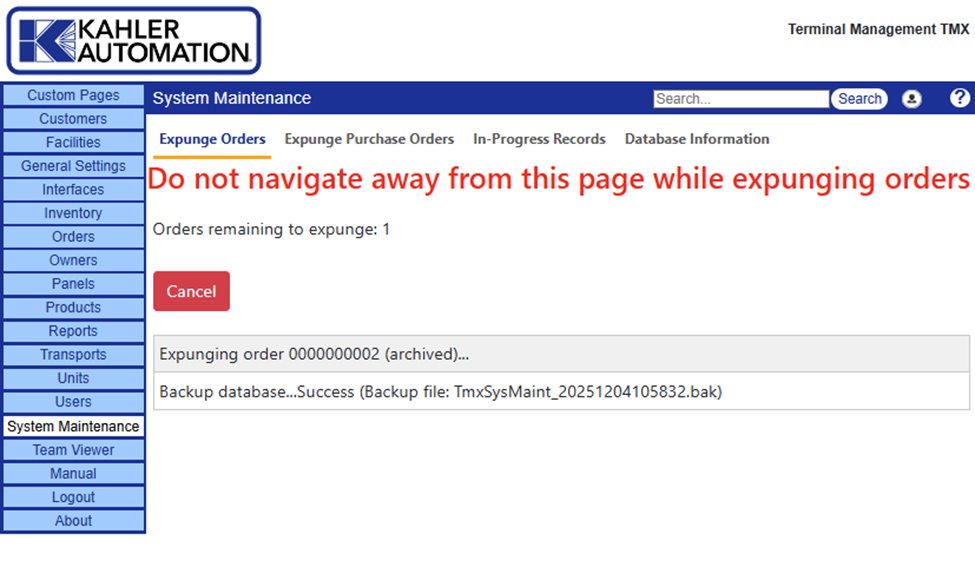
Expunge in progress
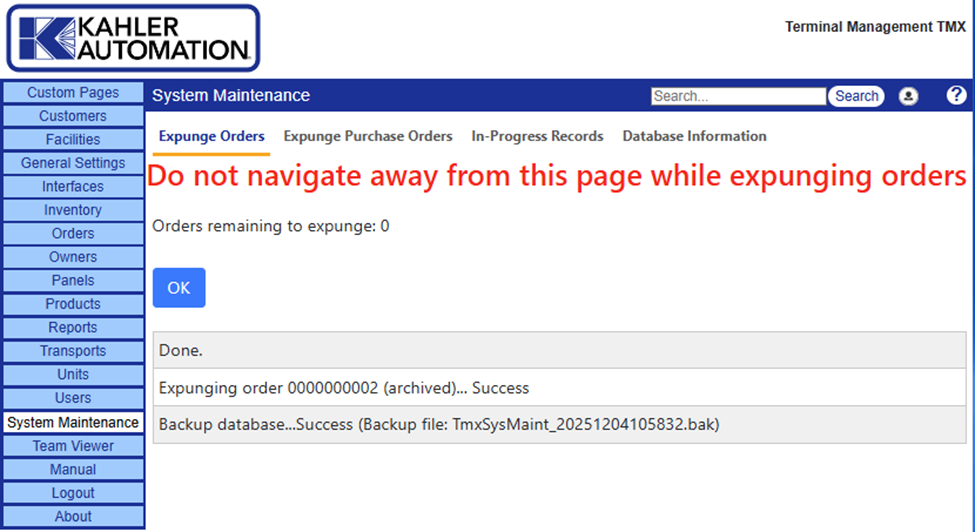
Expunge completed.
Further Reading
Still Need Help?
Submit an online web ticket or call us at Kahler Automation 507-235-6648 Option 2.