![Logo-RGB-color-solid.png]](https://help.kahlerautomation.com/hs-fs/hubfs/Logo-RGB-color-solid.png?height=40&name=Logo-RGB-color-solid.png)
Applies To
- Constellation
- Terminal Management TMX
Overview
Transports that already exist in TMX can be brought into Constellation without re-entering them. Constellation queries one connected site at a time for its list of transports, and the user imports the ones needed.
Constellation matches an incoming transport against the transports already in Constellation by transport name or transport number. A match is merged into the existing record rather than added as a second one.
Importing a transport takes it over. Constellation owns the transport from that point on and editing it at the site is limited. Transports can also be created in Constellation and synchronized out to their assigned sites, as described in Constellation - Transports.
Note: Importing transports requires Modify permission for the Transports section.
Fetching Transports from TMX
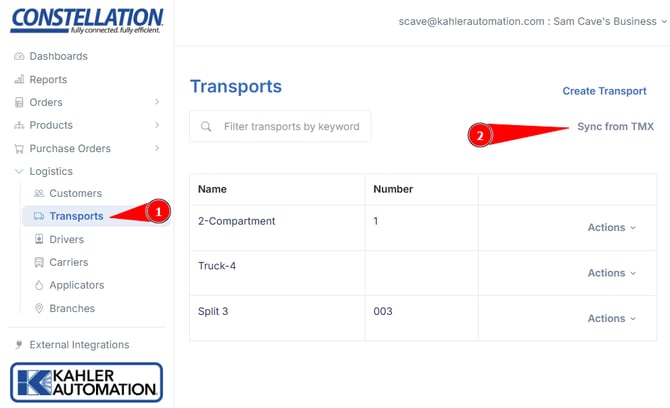
- In the left sidebar, expand "Logistics" and select "Transports".
- Select "Sync from TMX" at the top right of the page, below "Create Transport". The sync page opens.
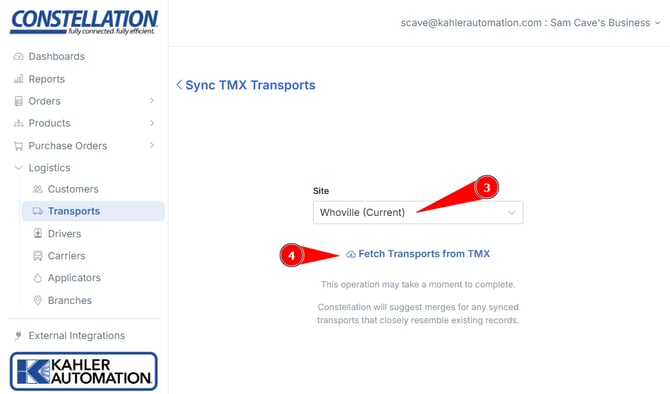
- Select the site to synchronize from.
- Select "Fetch Transports from TMX". Constellation queries the TMX system at that site and sorts the transports it returns into the "New", "Merge", and "Cannot Import" tabs. A tab is shown only when it has transports in it.
Note: Do not leave the page before the transports have been imported. Continue through the tabs to finish importing and merging them.
Caution: Fetched data expires after four (4) hours and any records not imported will require a new fetch from the Terminal Management TMX Server.
Importing New Transports
The "New" tab lists the transports from TMX that do not match an existing Constellation transport by transport name or transport number. Transports are selected for import or removal with the check boxes at the left of the table.
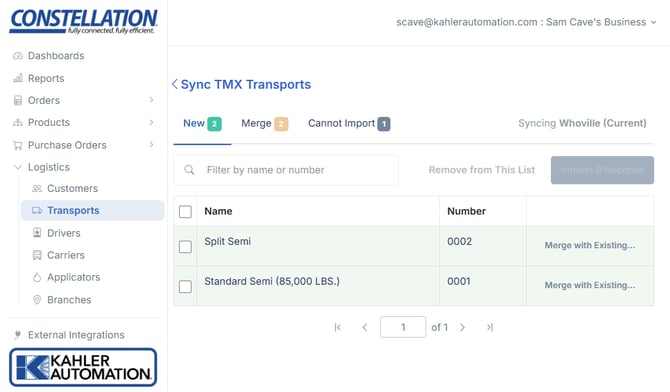
- To import transports as new records, select the records to import and choose "Import N Records".
- To merge a transport into an existing Constellation transport, choose "Merge with Existing..." on its row, then select the Constellation transport. The record moves to the "Merge" tab, where the merge is configured.
- To leave transports out, select the records and choose "Remove from This List".
Transport names must be unique, and transport numbers, if used, must also be unique.
Caution: Transports removed with "Remove from This List" are not imported. To bring one in afterward, fetch the transports from TMX again and repeat the import for those records.
Merging Duplicate Transports
The "Merge" tab lists the transports from TMX that match a transport already in Constellation by transport name or transport number, along with any records moved here from the "New" tab by manually configuring a merge.
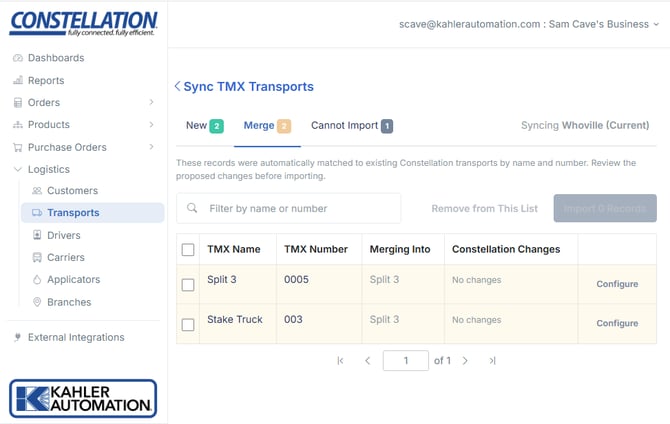
For each record, choose whether to keep the Constellation value or the TMX value for:
- Name
- Number
- Max Weight
- Compartments (the whole configuration, not individual compartments)
The configuration starts on the Constellation values.
A record moved here manually can be separated again by selecting "Create new transport instead" while configuring it, which returns it to the "New" tab.
Finalize the tab the same way as the first: select the records and choose "Import N Records” or choose "Remove from This List" to leave them out.
Note: Transports that Constellation has already taken over are skipped by the fetch, so the "Merge" tab lists only TMX transports that Constellation does not yet own.
Caution: Transports removed with "Remove from This List" are not imported. To bring one in afterward, fetch the transports from TMX again and repeat the import for those records.
Transports That Cannot Be Imported
The "Cannot Import" tab lists the transports that cannot be brought in, with the reason given for each one. A TMX database can hold more than one owner, and each Constellation site is connected to a single owner, as described in Connecting a TMX Site to Constellation. A transport owned by any other owner cannot be imported until it is owned by the one the site is connected to.
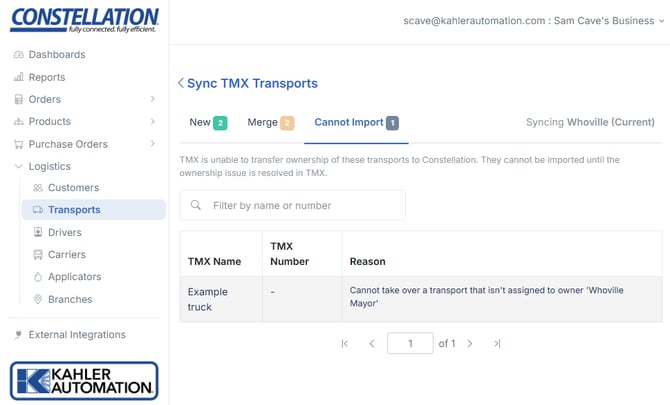
Resolve the reason given for a transport, then fetch the transports from TMX again to import it.
Confirming the Import
After choosing "Import N Records" on either tab, a confirmation appears. Select "Continue" to apply the import. Users may continue configuring the import until then finish and leave the page.
After Importing
An imported transport is assigned to the site it was fetched from. Assigning it to additional sites is done afterward, as described in Constellation - Transports.
Further Reading
Still Need Help?
Submit an online web ticket or call us at Kahler Automation 507-235-6648 Option 2.